SongRiff OnlineComing soon

FOR THE MUSIC YOU MAKE

Create it. Chart it.
Play it. Stay in Sync.

SongRiff is an iPad and iPhone app for creating and editing chord charts, organizing setlists, and keeping your lyrics and chords in view on stage.

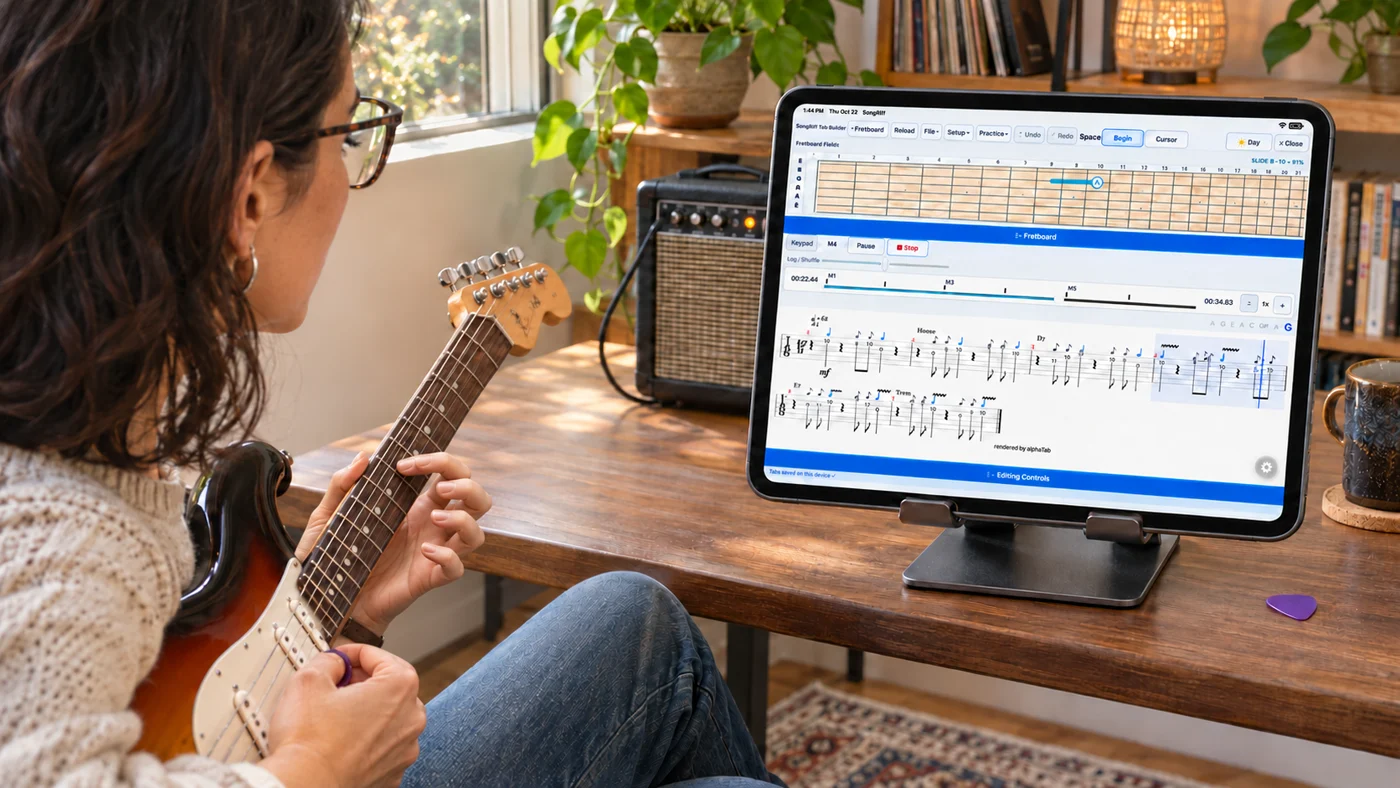
Build guitar parts, explore scales, and practice with Fretboard and Tab Builder.

Watch the demos

Coming soon for iPhone & iPad

Illustrated worship team using mounted devices on stage, facing the congregation.
Lead your team.
Illustrated solo guitarist performing outdoors with a chart on an iPad.
Play your stage.
Illustrated guitarist practicing a part with Tab Builder and its fretboard on an iPad.
Find your next riff.
Illustrated band using chord-and-lyric charts on stage monitors.
Stay together.
01 / 04

Lead your team.

SongRiff in the moment

YOUR CHART. YOUR WAY.

Make it yours.
Right down to the word.

Watch a real chart take shape on iPad—from chord placement and lyric formatting to transposing, saving a version, and taking it into Live View.

6:40 · Detailed narrated walkthrough · iPad

Jump to a chapter
Read narration

Start with the chart you want to play. In SongRiff, you can move a chord to the word where it belongs. Drag it along the lyric line and use the magnified view to check its position. Work through the chart at your own pace, keeping the words and chords together.

Make the important words easy to find. Turn on Highlight, select the lyrics you want, and adjust their appearance with the controls above the chart. Change the size, add bold, or choose a color. Here, the first words of the line become a bright visual cue.

At SongRiff, we put a great deal of care into making chart editing feel straightforward. The goal is to help you prepare the music, then get back to playing it.

Once you have a look you like, Copy style keeps those formatting choices ready. Highlight another phrase and use Apply style to give it the same treatment. You can repeat that through the verses and choruses, creating a chart that feels consistent and is easy to follow.

You can import a chart from Planning Center, choose a supported file, paste copied text, or create a chart yourself. Word and rich text files can also be imported in batches, saving you from repeating the same steps for every song. PDF and photo imports can help turn existing material into chart text. Take a moment to check those results, especially when the original page is crowded or the print is faint. Then use the same editing tools to make the chart your own. The idea is to give you a useful starting point and a clear way to refine it. Your collection may come from different places, but you can prepare the charts together in SongRiff.

You can keep refining the chart as you go. Move through the song, choose another phrase, and adjust the emphasis where you need it. The current formatting panel shows the style at your selection, so you can see what you are working with.

Customization helps you recognize where you are with a quick glance. And throughout your editing, the chords stay aligned above the lyrics where they belong. Change the font size, adjust the spacing, or indent a section: the chords follow the words, so you do not have to keep repositioning them by hand. Section labels separate the verse, chorus, and bridge, while indentation makes those sections easier to distinguish. Choose fonts, colors, and emphasis to match the way you read. A singer may want the opening words to stand out. A guitarist may want stronger contrast for the chords. Select a phrase, change its appearance, and carry that style to another line. Small adjustments add up to a chart that feels familiar when the next section arrives.

When the song needs a different key, use the key controls. The chord names update throughout the chart, while your lyrics and formatting stay in place. Review the new key, then keep working with the arrangement that suits the people playing it.

The same song can need a different arrangement for a different setting. You might shorten an intro for a service, keep an extra chorus for a full band, or prepare an acoustic version for a solo performance. Separate song versions let you keep those choices without giving up the original. Use clear names so you know which arrangement you are opening. Your formatting can help explain the structure as well: distinguish a repeated section, emphasize an entry, or make a line easier to find. Prepare the details while you have time, so the chart is ready when the musicians are.

Save your changes, or use Save As to keep another version of the song. Give that version a name that helps you recognize it later. Different arrangements can stay available without replacing the version you already use.

Choose the display that helps you follow the harmony. Chord names and Nashville Numbers offer different ways to read the same progression.

Prefer to think in numbers? Switch the chord display to the Nashville Number System. You can move between chord names and numbers as you prepare your chart.

Keep the chart readable and ready for the next rehearsal.

Bring the song into your live set and put it in playing order. Your setlist keeps the songs together, ready for rehearsal or the stage. Here, the edited chart becomes part of the set.

Setlists help with the practical side of a performance, too. When you set a duration for each song chart, SongRiff adds those durations together to estimate the length of the set and its finish time. It is a useful guide when you are planning a service, a rehearsal, or a venue set with a limited time slot.

Choose how the chart should look for the performance. Set up the display for the way you read, then open Live View when you are ready to play.

Preparing a chart and reading it on stage are different tasks. In Performance Favorites, you can set up fonts, colors, spacing, and layout for the way you perform. Portrait and landscape setups give you options for the device and stand you use. Choose a scrolling chart or a column layout when that suits the song. Smart Fit aims to make the text as large as it can while keeping the chart on screen. The goal is a clear view of the music when you look down.

Now the preparation comes with you into Live View. Your chord placement, lyric emphasis, and colors are there as you move through the song. Chord shapes can stay above the chart as a reference. From the first edit to the performance, make the chart work your way.

And the work you put into a chart can go beyond this screen. Print it in color or black and white, or select multiple charts to print together. Share SongRiff chart and setlist files through AirDrop, Messages, Mail, or other compatible choices in your device's share menu. From importing the first draft to making the final adjustments, SongRiff is built around helping you prepare a chart you can read, share, and enjoy playing.


Actual SongRiff · Chart editing on iPad
LESS FUSSING WITH YOUR CHART.More time making music.CREATE → REHEARSE → PERFORM

EXPLORE THE FEATURES

From first idea
to the final song.

One place to prepare your charts, build your set, explore guitar parts, and keep your performance moving.

01

Charts & editing

Build the chart you want to play.

Explore features
02

Live performance

Prepare your set. Stay with the music.

Explore features
03

Triggers & reminders

Put the change right where you need it.

Explore features
04

Guitar tools

Explore a part. Hear it. Make it yours.

Explore features

BRING IT IN. TAKE IT WITH YOU.

Your music.
More ways to work.

Import charts and guitar parts, share SongRiff files, or export an editable chord chart. Here’s what you can bring in and send out.
Bulk chart import: Select multiple Word (.docx) or RTF (.rtf) files at once.

Supported import and export formats
FormatImport into SongRiffExport from SongRiff
Plain text .txtChart text—
Word .docxCharts
Bulk import supported
—
Rich Text .rtfCharts
Bulk import supported
—
PDF .pdfChart text extractionCharts and tabs through system Print / PDF options
Photos & cameraRead chart text or capture printed tabs for Tab Builder—
ChordPro .choEditable lyrics and chordsEditable lyrics and chords
SongRiff .songriffShared charts and setlists; library backup restoreShare charts and setlists; library backups
Guitar Pro .gp .gp3 .gp4 .gp5 .gpxInto Tab Builder—
MusicXML .musicxml .xmlTAB or standard notation into Tab Builder—

Start where your chart lives. Import from Planning Center, paste copied text, or choose files through iOS Files. Enabled providers such as iCloud Drive, Google Drive, and Dropbox can appear in the file picker.

Send a chart. Share a setlist. Send SongRiff files to another SongRiff user with AirDrop, Messages, or Mail through the iPhone and iPad share menu. You can also save to Files, including iCloud Drive or enabled cloud storage providers, and share through compatible installed apps. Available options depend on your device, installed apps, and settings. Recipients open the file in SongRiff to import it.

Choose the right format. Use a SongRiff file for another SongRiff user, ChordPro for editable lyrics and chords, or the system print options for a printed chart or PDF. ChordPro does not preserve every SongRiff display setting or performance feature.

Review imported charts and tabs before performing, especially text read from PDFs or photos. File contents and notation can affect the result. Direct updates back to Planning Center are not included.

A CLOSER LOOK AT SongRiff

Big ideas.
Both screens.

Your charts on iPad and iPhone.
Take a look inside the app.

Start a fresh chart, or bring a song you already have.

A short guide, in your own time.
Read narration

iPadNew Chart
iPad Choose an icon · Tap the screen to enlarge
iPhoneNew Chart
iPhone Choose an icon · Tap the screen to enlarge

Interactive screenshot tour · Choose an icon to compare the same view on both devices. Preview navigation is for exploring; chart controls are shown as screenshots.

ONE IDEA. MANY POSSIBILITIES.

Make it yours.
Then take it live.

For guitarists, bands, worship teams, and the musician with a new idea at midnight.

01 / CREATE

A chart that works
the way you think.

Import a chart and SongRiff detects its key when possible. Transpose with a tap, or switch to the Nashville Number System (NNS). Edit lyrics and place chords right where they belong.

Highlight   + Chord   UndoG         C

Find your own rhythm|

02 / PREPARE

Build the set.
See the bigger picture.

Keep multiple versions of the same song and build separate setlists for different gigs, services, or rehearsals. Set a duration for each song chart, and SongRiff adds them together to estimate how long your set will run and what time it will finish. Live View keeps the remaining song time, remaining set time, and estimated finish time in view.

01 Chasing the Morning 4:00
02 Open Roads 3:30
03 One More Light 4:15
03 / PERFORM

Your music.
Front and center.

Let the chart scroll to your song’s duration, or see the whole song with Split Smart Fit. Jump between sections, keep the beat in view, and use a pedal to keep your hands on the music.

1234FIND YOUR PULSE

YOUR CHART. YOUR CHANGES.

Stay with the song.
Let your chart switch.

Place MIDI changes where you need them. Recall your pedal presets, control individual effects, and save the setup with your chart. Watch Clean hand off to Overdrive as the marked location crosses the tripwire.

Actual SongRiff · Triggers on iPad2:14 · Narrated walkthrough

THE DETAILS THAT MAKE IT YOURS.

Your reminders.
Your chord shapes.

Add callouts for swells, pickup changes, and the details you want to remember. Keep chord shapes above your chart, explore triads and inversions, and switch between saved Performance Favorites without leaving Live View.

Actual SongRiff · Callouts, shapes & Favorites2:01 · Narrated iPad demo
Read narration

Keep the details of your performance right on the chart. Add a callout, place it beside the section you want, then give it a clear label. Choose a color that stands out. Here, a simple reminder to add swells sits beside the intro, ready when you need it. Add another reminder for a change in tone or technique. Overdrive and bridge pickup at the chorus. Your own notes, right where you play them. Chord shapes can stay visible above your chart, appear with the pedal, or remain hidden. Keep the reference you need without leaving Live View. Tap a chord to explore its shapes. Switch from full chords to triads, and choose a string group for the part you want to play. Move through the available positions and inversions, then choose the shape that suits your part. A different voicing can give the same chord a fresh sound. Your chosen shapes stay above the music, while callouts move with the chart. Keep your chords and performance reminders together, so you can focus on playing. Performance Favorites let you save the layout you like, including fonts, colors, and spacing. Choose a Favorite for a chart in your set, so it's ready for the way you play.

YOUR CHART. YOUR WAY.

Make every detail
work for you.

Follow along as a saved chart takes shape. Transpose the key, copy and apply lyric styles, place chords over the right words, then save your version and choose its set list.

Actual SongRiff · Editor on iPad2:41 · Narrated walkthrough

READY WHEN THE SONG STARTS.

Your chart.
Your pace.

SPLIT SMART FIT

The whole song, at a glance.

Split View uses two columns in portrait and up to three in landscape. Split Smart Fit makes the lyrics as large as possible while keeping the whole song on screen. Show lyrics with chords, or choose lyrics only.

SCROLL TO DURATION

Set the length. Let it scroll.

Enter your song’s duration and choose Timed mode. SongRiff calculates the scrolling speed to move through the chart over that time. Pause, resume, or move back through the chart as the performance needs.

SONG DETAILS, PUT TO WORK

One tempo. Ready to play.

SongRiff reads duration and BPM from the chart text when those details are included. You can also enter or adjust them in Editor. The duration guides timed scrolling and set timing; the song’s BPM sets the metronome tempo.

Know where your set is headed.

Song durations add up to an estimated set length and finish time. See song time remaining, set time remaining, and your estimated finish at the top of Live View.

Actual SongRiff · Live View timing0:18 · Narrated close-up
Read narration

Set a duration for each song chart, and SongRiff adds them together to estimate how long your set will run. In Live View, the timing bar shows the time left in your song and set, along with your estimated finish time. Plan your set, and see where you stand.

A BIGGER SCREEN. A SHARED VIEW.

Take your music.
To the big screen.

Cast SongRiff to a TV and choose the view for the people watching—from a monitor in front of the band to a lyrics display everyone can follow.

Illustration of a band reading SongRiff chord-and-lyric charts on compact stage monitors facing the players.FOR MUSICIANS

Chords and lyrics, together.

Show chords with the lyrics on a TV or stage monitor in front of a musician or band, so the group can follow the chart on a larger screen.

Illustration of a solo singer with an iPad facing her and a TV beside her showing four lines of lyrics in presentation view.LYRICS ONLY

Scroll the words. Or turn the slide.

Choose from lyrics-only views. Let the words scroll, or show groups of lyric lines on presentation-style slides that change as the song moves on.

KEEP YOUR HANDS ON THE MUSIC.

Your foot.
Your next move.

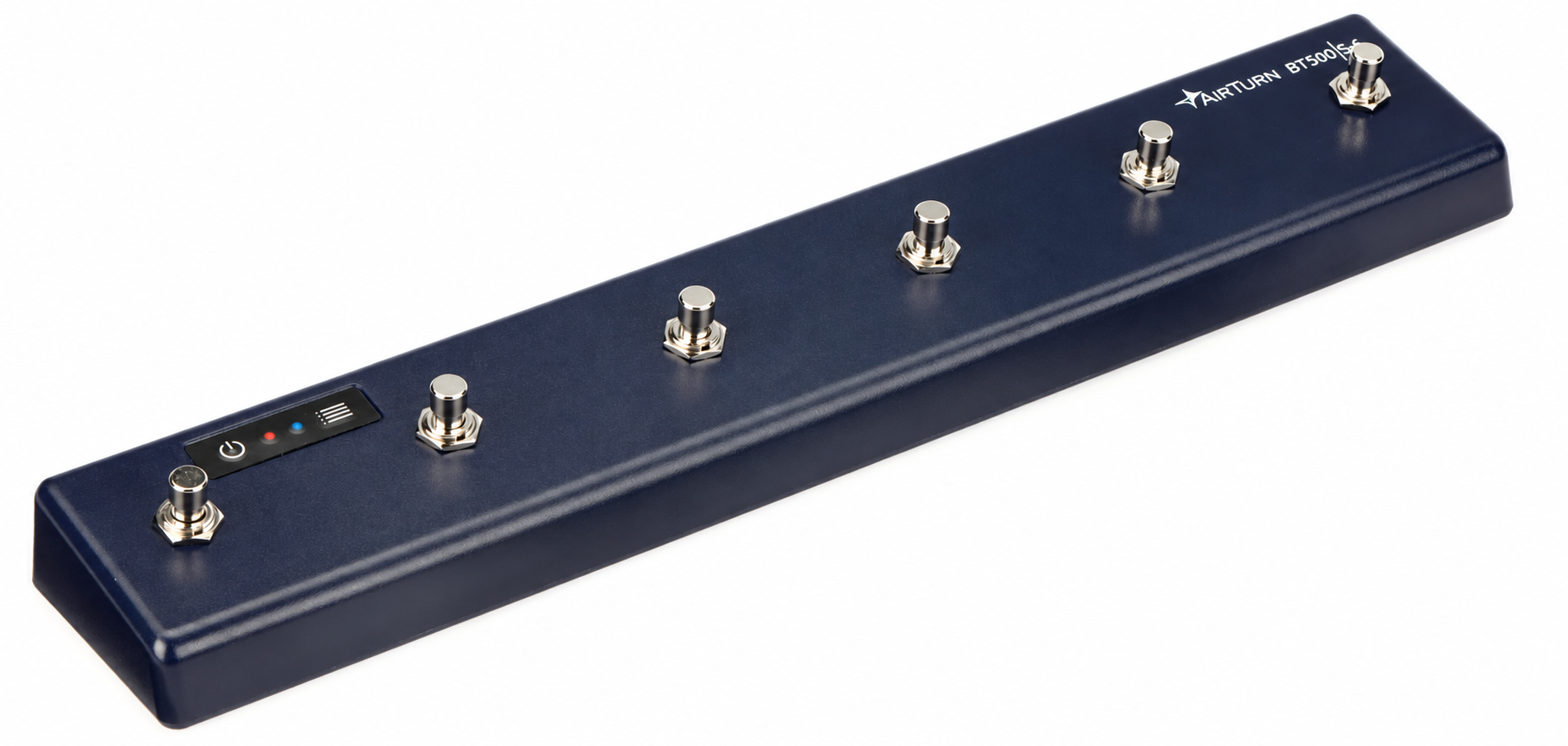
Keep playing while you control your chart. Connect a compatible Bluetooth foot pedal, then choose how it works in SongRiff’s performance settings.

  • Jump between song sections
  • Move to the previous or next chart
  • Control scrolling or the timed start
Foot pedal setup walkthrough Coming soon ↗
AirTurn BT500S-6 Bluetooth foot controller with six metal foot switches
AirTurn BT500S-6 · Tested with SongRiff · Pedal sold separately.

THERE'S A GUITAR PLAYER IN HERE, TOO.

Don't just chart it.
Riff on it.

Enter a chord progression and let SongRiff create connecting notes and fills between the chords, with bass and drums alongside.

Light up a scale pattern on the fretboard and have SongRiff favor notes from that pattern when creating connectors and fills. Explore different parts of the neck, then send a part you love to Tab Builder to make it your own.

Choose a key and progression. Let SongRiff create connectors and fills, guided by the scale pattern you choose.

Slides you can follow.ACTUAL SongRiff
Fretboard · Slide in actioniPhone landscape · Tap to enlarge

SEE THE PATTERN. HEAR THE POSSIBILITIES.

Give your progression
some room to roam.

Watch SongRiff play a progression with scale patterns visible across the neck. Follow the notes as chords, connectors, slides, and bends bring the part to life.

Actual SongRiff · iPhone landscapePress play to watch with sound

FROM PROGRESSION TO POSSIBILITY.

Build a part.
Hear it come alive.

Build chord progressions, explore triad positions, and hear connecting notes and fills bring them together. Add bass and drums, then use scale patterns to guide the part as you follow it across the fretboard.

Actual SongRiff · Narrated iPad walkthrough3:14 · Hear it play at 1:03

KEEP THE PART. MAKE IT YOURS.

Your progression.
Now in tablature.

Watch a Fretboard progression become editable tablature, then hear the part play in Tab Builder with the notes animated across the neck.

Actual SongRiff · Fretboard to Tab Builder1:05 · Narrated iPad demo

A riff can start anywhere.

A LITTLE HELP GOES A LONG WAY.

Less guessing.
More playing.

Start with a quick written guide.
Narrated walkthroughs are on the way.

01Create your first chartFrom a fresh idea or a chart you already have
  1. Open New Chart. Enter a song title and choose Start New Chart. Set the key in Editor.
  2. Already have a chart? Copy its text, choose Paste Text, review the result, then choose Import Reviewed Chart. SongRiff detects the likely key when possible.
  3. Make it yours in Editor. Tap lyrics to edit them. Place chords over the words, transpose to a different key, or switch to the Nashville Number System (NNS). Adjust fonts, colors, and spacing to suit your eyes.
  4. Save your chart. Use Save As to keep another version of the same song. Add the version you want to a set when you’re ready to rehearse or perform.

Import tip: put section headings in brackets, such as [Verse 1], with chords on the line above the lyrics.

See Editor on iPad & iPhone
02Take your set into PerformArrange the songs, choose your view, and start
  1. Build your setlist. Create a setlist for your gig, service, or rehearsal. Add saved song versions and drag them into order. Keep multiple setlists ready for different occasions.
  2. Open Perform. Choose Timed mode to scroll over your song’s duration, or Split View with Split Smart Fit to fit the whole chart on screen with the largest lyrics that fit. Use two columns in portrait and up to three in landscape, with chords or lyrics only.
  3. Find your place. Section buttons jump to a verse, chorus, or another part of the song.
  4. Start your chart. The controls fade to leave room for the music. Tap the screen to bring them back.

SongRiff reads BPM and duration when included in the chart text. Check them in Editor: BPM sets the metronome tempo, while duration controls timed scrolling and contributes to the set’s estimated finish time.

See Perform on iPad & iPhone
03Turn a progression into a guitar partTry chords, explore the neck, and keep the idea
  1. Open Fretboard and choose a key. Enter a progression, or choose a progression preset.
  2. Start simple. Try C, G, Am, F in the key of C. Choose where on the neck you want to play.
  3. Listen and experiment. Use Play Progression. SongRiff generates connector notes and fills for your chords. Display a scale pattern and enable scale favoring to guide those notes toward the pattern you’ve chosen. Use Change it up to explore another part.
  4. Keep a part you like. Export to Tab Builder, edit the notes and embellishments, then save your tab.

Play Single Note/Chord plays the current selection. Play Progression plays your sequence of chords.

See the guitar tools

NARRATED VIDEO GUIDES

Watch each setup, one step at a time.

01

Your first chart & setlist

VIDEO COMING SOON
02

Connect your foot pedal

VIDEO COMING SOON
03

Link SongRiff with Playback

1:26

Set up MIDI Mapping in Playback and match the Chart Cue shown in SongRiff.

YOUR NEXT WORKSPACE

SongRiff.
In your browser.

COMING SOON

We’re planning a full browser version of SongRiff, with chart editing, setlists, Fretboard, and Tab Builder.

The goal: prepare on your laptop and take your music with you, with synced charts, tabs, and setlists across devices.

In development · browser features and release details to come.

THE NEXT CHAPTER IS TAKING SHAPE.

Your music.
Your way.

SongRiff is in development.
Release details, tutorials, and download links will arrive here.

COMING SOON · iPHONE & iPAD
Explore individual plans